


Why Is My Windows 11 Running Slow? 10 Ways to Speed Up Windows 11 in 2026
Windows 11 is designed to feel modern, smooth, and responsive. But after using your PC for a while, you might notice that something isn’t quite right. Apps take longer to open, File Explorer feels sluggish, or your computer takes forever to start.
If you’re wondering why your Windows 11 PC is running so slowly, you’re certainly not alone. Even a relatively new computer can experience performance problems, and the cause isn’t always outdated hardware.
Sometimes, a few background applications, limited storage space, or unnecessary startup programs are enough to slow everything down.
The good news is that you don’t always need a new computer or expensive software to fix these problems. Windows 11 already includes several useful tools that can help you improve performance.
In this guide, we’ll walk through 10 practical ways to speed up Windows 11 in 2026. These methods are beginner-friendly, and most of them take only a few minutes.
Why Does Windows 11 Become Slow?
Before changing anything, it helps to understand what’s causing the slowdown.
Here are some common reasons Windows 11 might feel slower than usual:
- Too many startup apps: Several programs may launch automatically whenever you turn on your computer.
- High CPU or memory usage: Background applications can use resources even when you’re not actively using them.
- Low storage space: A nearly full system drive can affect Windows performance and updates.
- Outdated drivers: Older or incompatible drivers sometimes cause performance or stability problems.
- Visual effects: Animations and transparency can make older computers feel less responsive.
- Unnecessary software: Apps you no longer use may still consume storage or run background services.
- Malware: Unwanted software can use system resources and cause unexpected slowdowns.
- Hardware limitations: Older processors, limited RAM, and traditional hard drives may struggle with demanding applications.
Not every computer will have the same problem. That’s why it’s worth identifying the likely cause before trying every possible fix.
10 Ways to Speed Up Windows 11 in 2026
Let’s start with the simplest adjustments before moving on to settings that may have a bigger impact on older PCs.
1. Restart Your PC and Check Resource Usage
It sounds simple, but restarting your computer is a useful first step. If you’ve been running Windows for several days, background processes, open applications, and temporary software issues can sometimes affect responsiveness.
Save your work, open the Start menu, click the Power button, and select Restart.
Once Windows starts again, check whether the problem is still there.
If your computer remains slow, Task Manager can help you find out what’s happening.
How to check resource usage:
- Press Ctrl + Shift + Esc to open Task Manager.
- Select the Processes tab.
- Check the CPU, Memory, and Disk columns.
- Click a column heading to sort applications by their resource usage.
- Look for apps using an unusually high amount of resources.
- Close applications you recognize and no longer need.
For example, if your browser has dozens of tabs open, closing some of them may reduce memory usage.
Be careful with unfamiliar processes. Some belong to Windows or important hardware services, so don’t end a process just because its name looks unusual.
2. Disable Unnecessary Startup Apps
One of the most common reasons Windows 11 takes a long time to become usable after signing in is the number of applications launching at startup.
Messaging apps, gaming launchers, cloud utilities, and other programs may open automatically, even if you don’t need them immediately.
Disabling unnecessary startup items can make a noticeable difference, especially on computers with limited RAM.
Here’s how to do it:
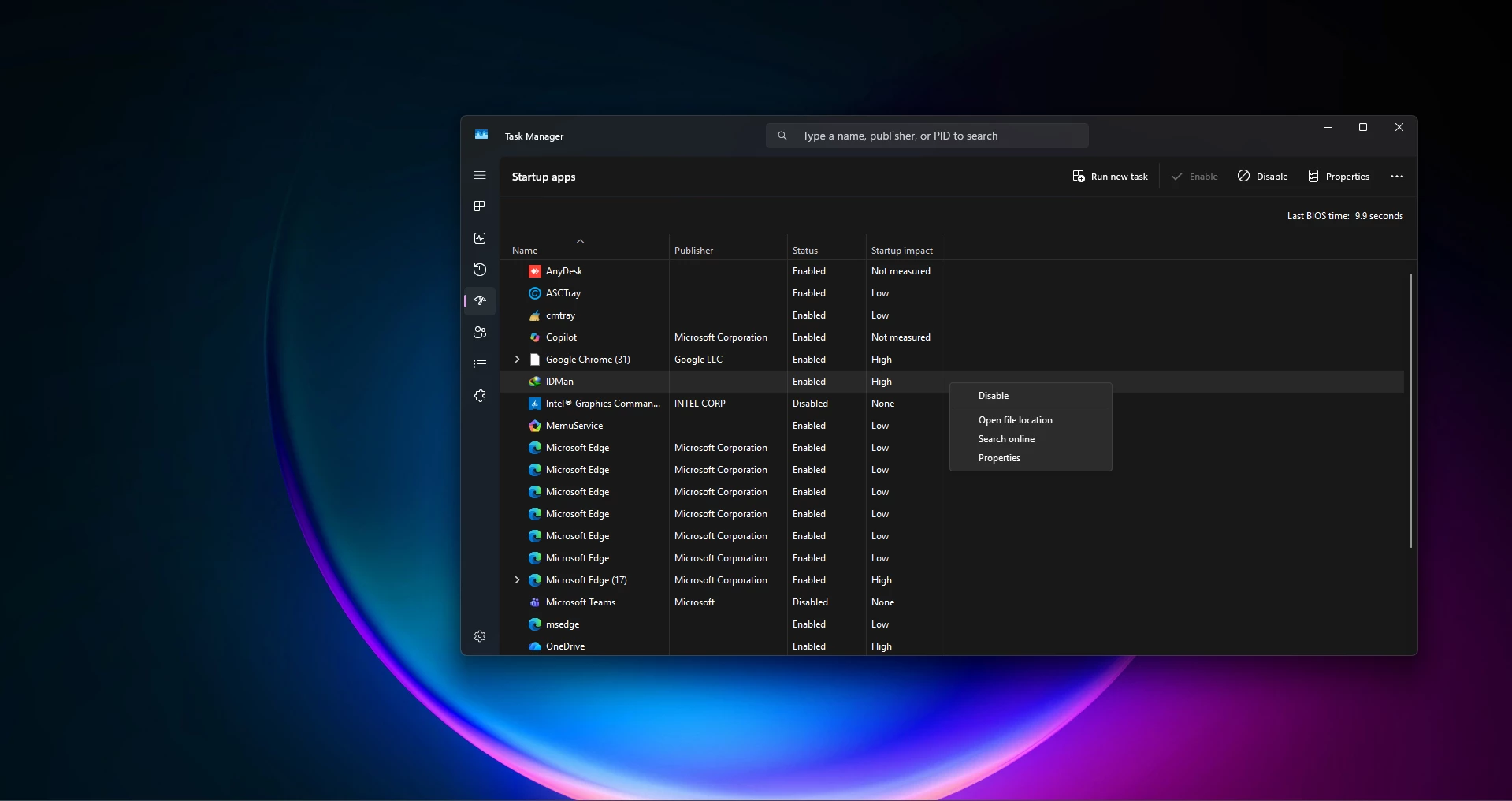
- Right-click the Start button and select Task Manager.
- Open the Startup apps section.
- Review the list of applications.
- Look at the startup impact information, if available.
- Select an application you don’t need when Windows starts.
- Click Disable.
You can also manage many startup programs from Settings > Apps > Startup.
Disabling an app here doesn’t uninstall it. You can still open it whenever you need it.
Tip: Keep essential security, accessibility, and hardware-related software enabled unless you understand what it does.
3. Free Up Storage Space with Storage Sense
Windows needs available storage space for temporary files, updates, and everyday system operations. When your main drive becomes nearly full, you may notice slower performance or problems installing updates.
Fortunately, Windows 11 has a built-in feature called Storage Sense that helps manage unnecessary files.
To enable Storage Sense:
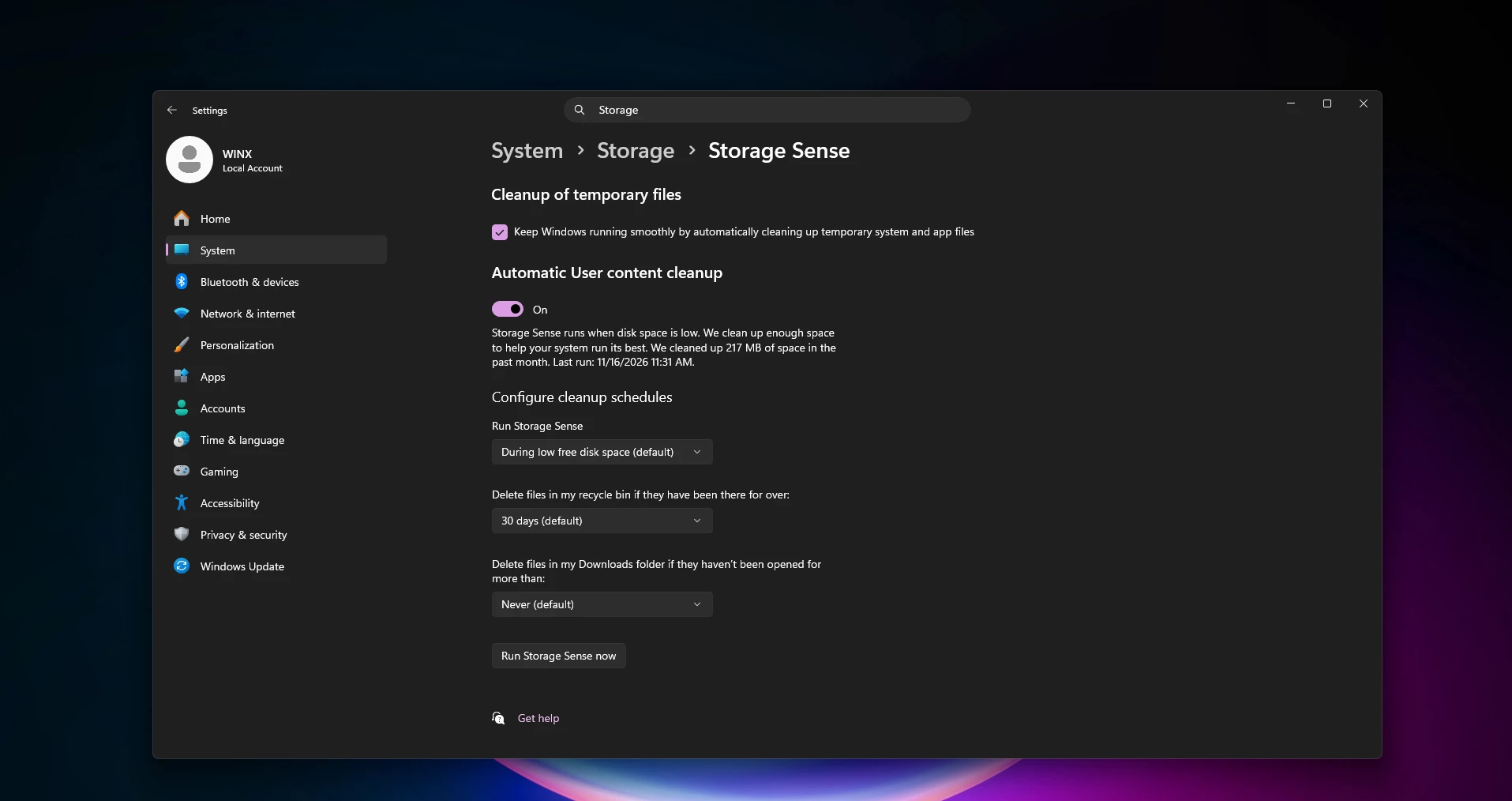
- Press Windows + I to open Settings.
- Navigate to System > Storage.
- Find Storage Sense.
- Turn it on.
- Open its settings to choose when it runs and what it cleans up.
You can also open Temporary files or Cleanup recommendations under Storage to review files that Windows suggests removing.
Check every selected category before deleting anything. In particular, avoid removing files from Downloads or previous Windows installations unless you’re sure they’re no longer needed.
Storage Sense is useful for routine maintenance, but it won’t fix every performance problem. If your drive is frequently full, consider moving large videos, archives, or other personal files to another storage device.
4. Uninstall Apps You No Longer Use
Over time, it’s easy to collect applications that you rarely open. Some may occupy several gigabytes of storage, while others install services or components that continue running in the background.
Removing unused software is a straightforward way to keep your Windows installation organized.
How to uninstall unnecessary apps:
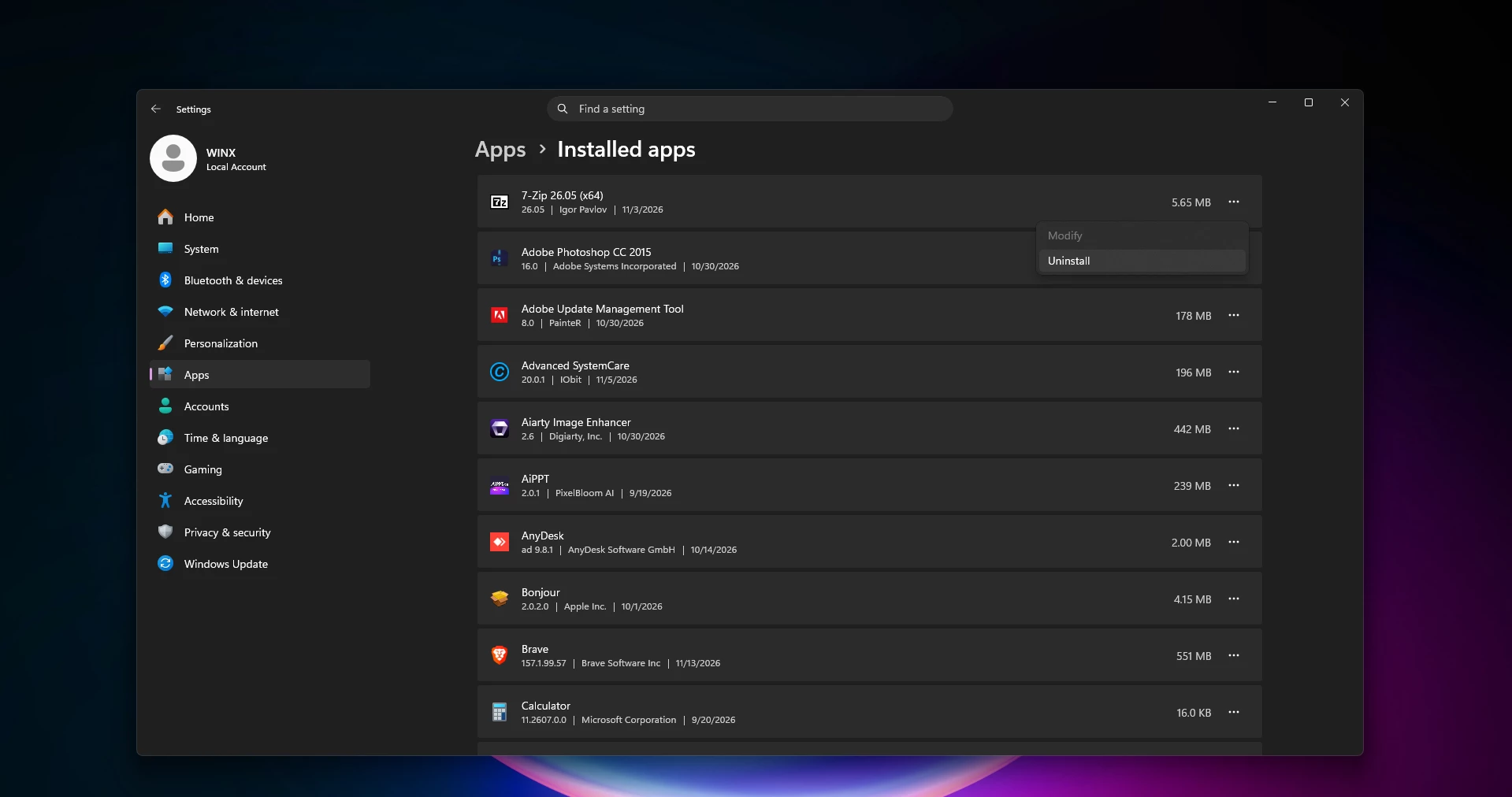
- Open Settings.
- Go to Apps > Installed apps.
- Browse the list of installed software.
- Find an application you no longer need.
- Click the three-dot menu beside it.
- Select Uninstall and follow the instructions.
Start with old games, unused utilities, and applications you installed for a one-time task.
However, don’t remove unfamiliar system components, device drivers, or hardware support utilities without checking their purpose.
Remember: Uninstalling a large application mainly frees storage. The performance benefit will depend on whether that application was also consuming resources.
5. Reduce Unnecessary Background App Activity
Some applications continue working after you close their windows. This can be useful for notifications, syncing, or updates, but unnecessary background activity may contribute to higher memory and processor usage.
Windows 11 lets you adjust background permissions for certain supported applications.
Follow these steps:
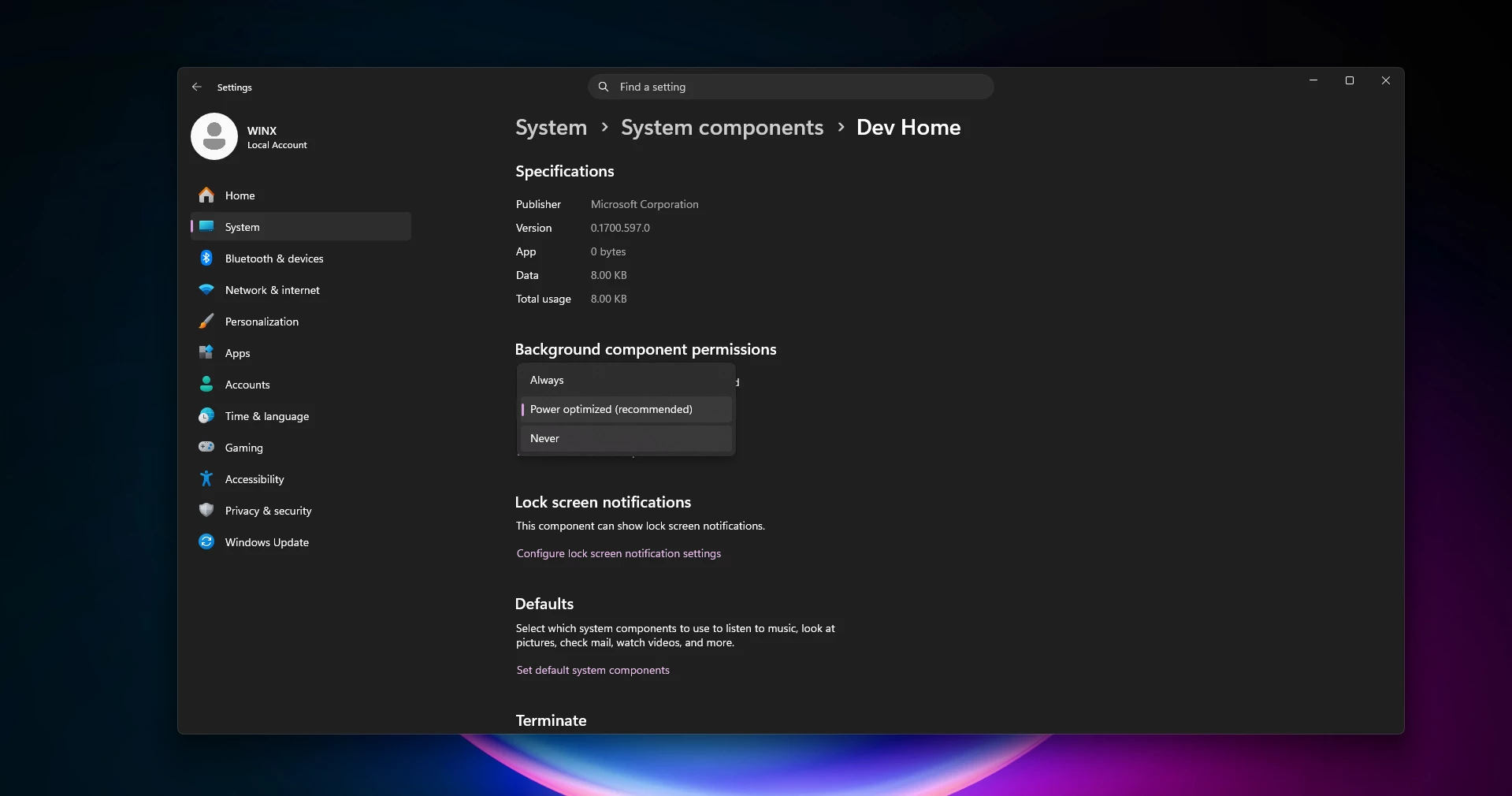
- Open Settings > Apps > Installed apps.
- Find an application you want to manage.
- Click its three-dot menu.
- Select Advanced options, if available.
- Look for Background app permissions.
- Set the permission to Never if you don’t need the app running in the background.
Not every application provides this option. Traditional desktop programs may manage background activity through their own settings.
If you’re using desktop customization tools, animated wallpapers, widgets, or other visual utilities, it’s also worth checking whether they’re using more resources than expected.
There’s no need to disable everything. Focus on applications you rarely use and don’t depend on for notifications or background tasks.
6. Turn Off Unnecessary Windows Animations and Transparency
Windows 11 includes smooth animations, transparent surfaces, and other visual details that make the desktop look polished.
These effects usually work well on modern hardware. However, if you’re using an older laptop or a computer with limited resources, reducing some effects may make the interface feel more responsive.
To change visual effects:
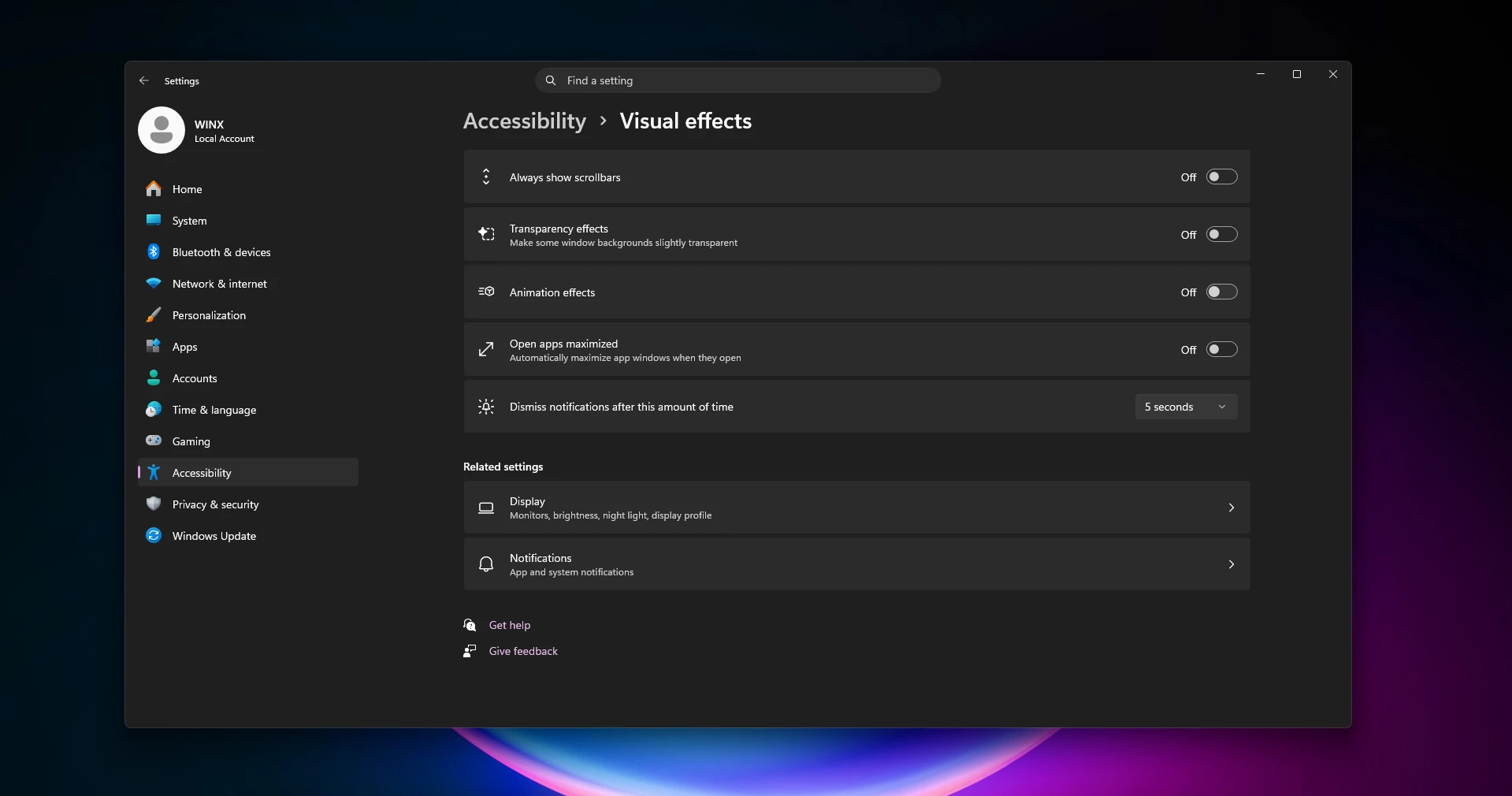
- Open Settings.
- Go to Accessibility > Visual effects.
- Turn off Animation effects if you prefer faster, simpler transitions.
- Turn off Transparency effects if you don’t need translucent interface elements.
For additional options, search the Start menu for Adjust the appearance and performance of Windows.
In the window that appears, you can select Adjust for best performance or manually choose which effects to keep.
If you want a balance between appearance and responsiveness, try disabling animations first rather than removing every visual effect.
Note: These changes primarily affect interface effects. They won’t significantly improve a slow processor or solve a serious storage problem.
7. Update Windows 11 and Your Device Drivers
Keeping Windows updated is important for security, compatibility, stability, and performance.
Microsoft regularly provides fixes through Windows Update. Hardware manufacturers also release driver updates that may address specific problems with graphics, Wi-Fi, storage, or other components.
To check for Windows updates:
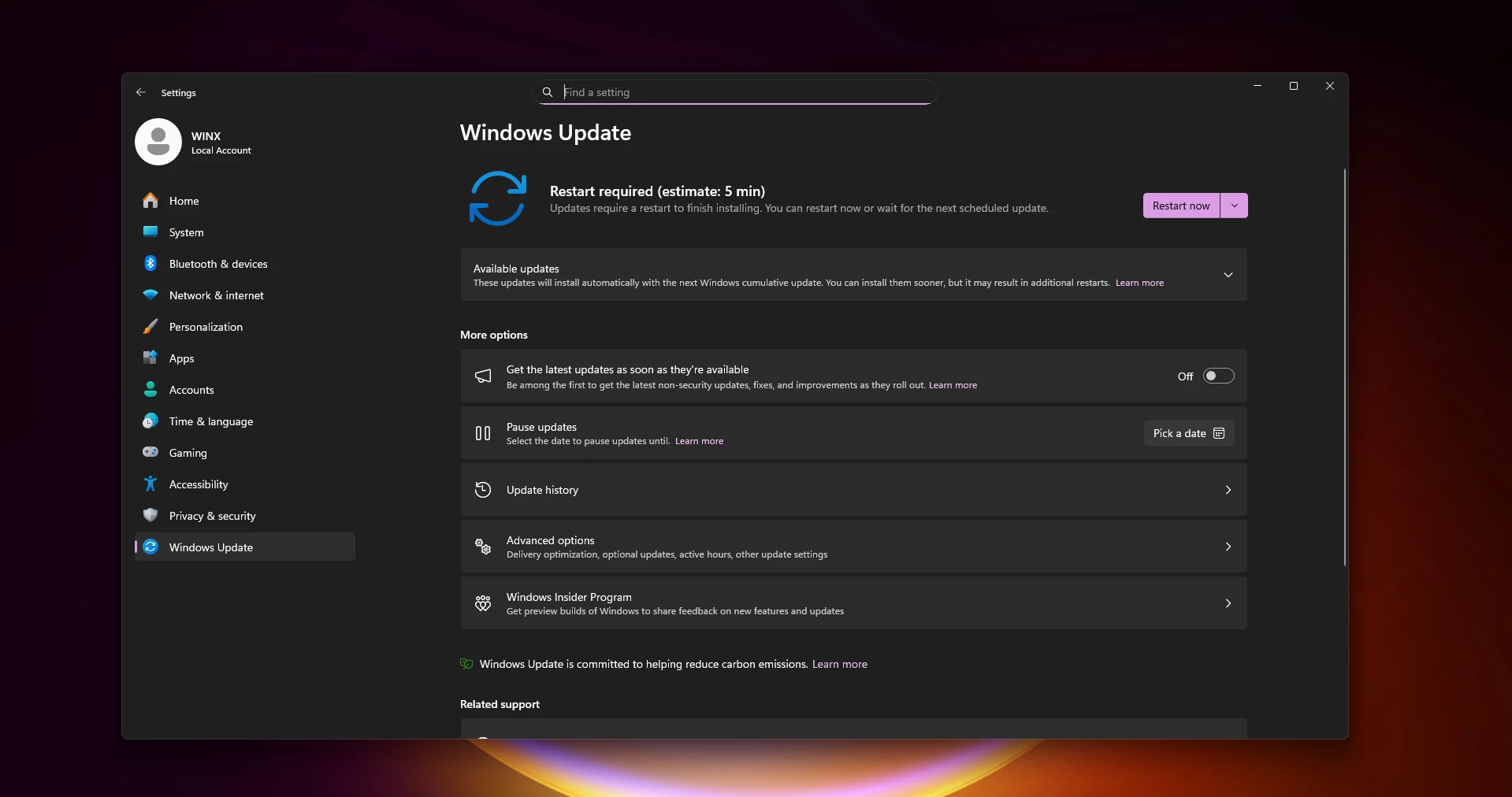
- Press Windows + I.
- Open Windows Update.
- Click Check for updates.
- Install available updates that apply to your computer.
- Restart the device if Windows asks you to.
You can also check Windows Update > Advanced options > Optional updates for available driver updates.
Not every optional driver needs to be installed. If everything is already working correctly, there’s usually no reason to replace a stable driver just because another version is listed.
If you’re troubleshooting a particular hardware issue, use Windows Update or the official support website of your PC or component manufacturer.
Avoid random driver download websites and tools that promise automatic performance improvements.
8. Scan Your Computer for Malware
If your PC suddenly becomes unusually slow, malware or unwanted software could be one possible explanation.
Suspicious programs may use processor resources, create unwanted background processes, or interfere with normal computer activity.
Windows 11 includes Microsoft Defender Antivirus through the Windows Security app, so you can perform a security scan without installing an additional cleaning utility.
How to run a quick scan:
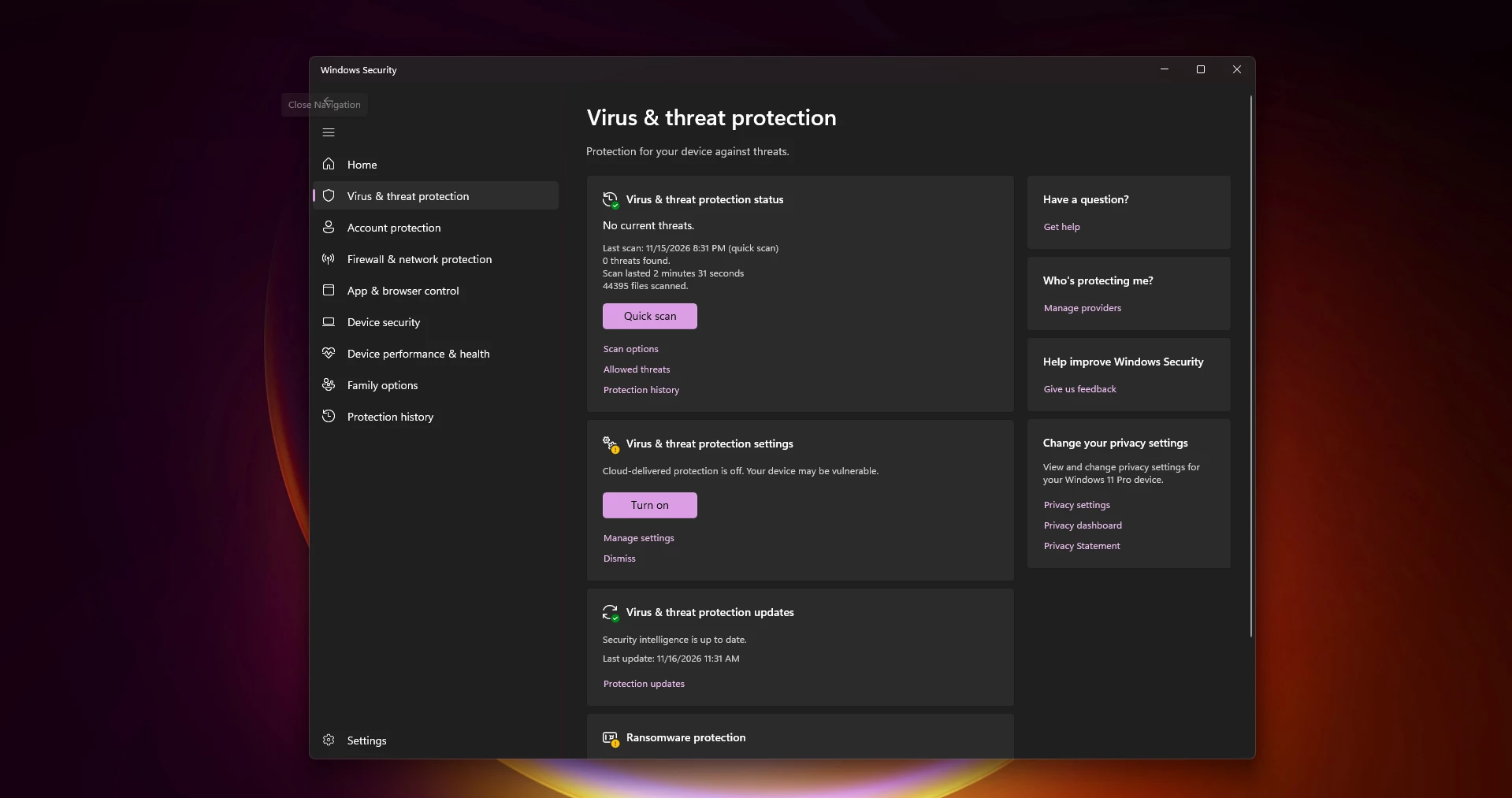
- Open the Start menu.
- Search for Windows Security.
- Open Virus & threat protection.
- Select Quick scan.
- Wait for the scan to finish.
- Review any findings and follow the recommended actions.
If you’re still concerned, open Scan options and consider a Full scan.
A slow computer doesn’t automatically mean it’s infected. Still, checking your security status is sensible when performance changes unexpectedly.
Keep your antivirus protection enabled rather than turning it off in an attempt to make Windows faster.
9. Choose the Right Power Mode
Windows 11 includes power settings that balance performance and energy consumption.
On supported devices, selecting a higher-performance mode may help the processor respond more aggressively to demanding tasks.
This can be useful when editing videos, working with large files, or running resource-intensive applications.
To adjust your power mode:
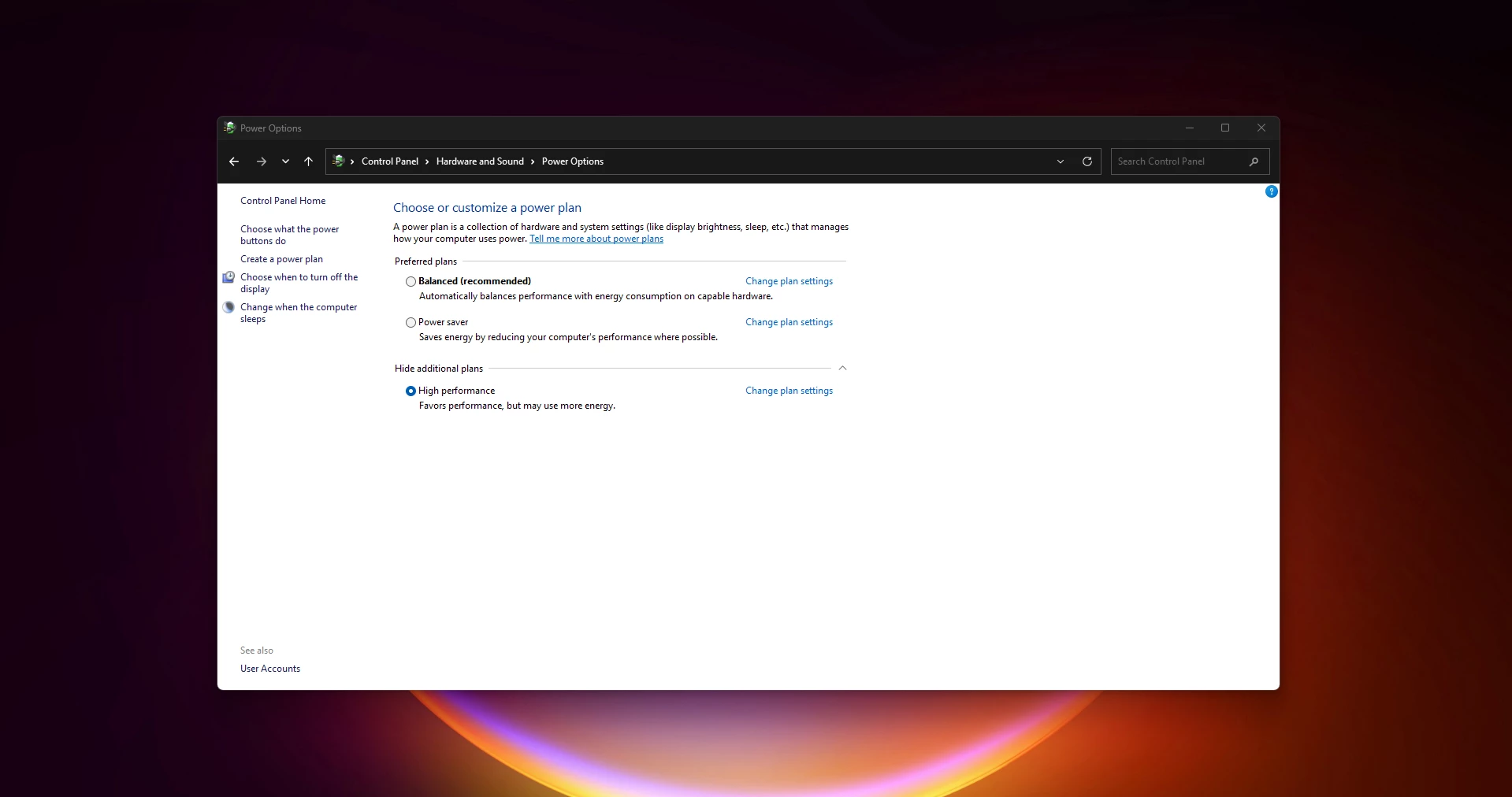
- Open Settings.
- Go to System > Power & battery. On some desktop PCs, the section may appear as Power.
- Find the Power mode setting.
- Select Best performance if it’s available and suitable for your needs.
For everyday laptop use, Balanced mode may be the better option.
Best performance can increase power consumption, battery drain, and heat. It also won’t make much difference if your computer is being limited by something else, such as insufficient RAM or a failing drive.
Tip: If your laptop becomes unusually hot or slows down under heavy workloads, check that its ventilation openings aren’t blocked.
10. Optimize Your Storage Drive and Check Hardware Limitations
If Windows still feels sluggish after trying the previous steps, take a closer look at the storage drive and the hardware inside your computer.
Windows 11 includes a built-in drive optimization tool that can help maintain storage performance.
Here’s how to use it:
- Open the Start menu.
- Search for Defragment and Optimize Drives.
- Open the application.
- Select your system drive, usually C:.
- Check the media type and optimization status.
- Choose Optimize if appropriate.
Windows normally optimizes supported drives automatically, so manual optimization isn’t something you need to repeat every day.
It’s also important to understand the difference between storage types. Windows defragments traditional hard drives when appropriate, while SSD optimization uses a different process, including TRIM.
Don’t use third-party defragmentation tools to repeatedly defragment an SSD.
If your computer still uses an older mechanical hard drive, replacing it with a compatible SSD may provide a much larger improvement in boot times and application loading than adjusting Windows settings alone.
Likewise, if Task Manager regularly shows memory usage close to its limit, adding compatible RAM may help with multitasking.
Check your device’s specifications and upgrade options before purchasing any hardware. Some laptops have non-upgradeable memory or storage components.
What If Windows 11 Is Still Slow After Trying Everything?
If none of these changes has helped, don’t assume you need to reinstall Windows immediately.
First, think about when the problem started. Did the slowdown appear after installing a particular application, connecting new hardware, or updating a driver?
That information can help narrow down the cause.
Here are a few additional things worth checking:
- High memory usage: Close unused applications and browser tabs. Check whether your installed RAM is sufficient for your workload.
- Constantly high disk usage: Identify the responsible process in Task Manager and check the health of your storage device if the issue continues.
- Slow performance during gaming: Review game settings, graphics drivers, available RAM, and the temperature of your system.
- Slowdown after a Windows update: Allow pending update tasks to finish, restart, and check whether the problem continues.
- Unexpected freezing or crashes: Consider a hardware diagnostic or professional inspection, especially if the issue is becoming more frequent.
If you eventually decide to reset or reinstall Windows, back up your important files first. A reset can resolve certain software-related problems, but it won’t repair failing hardware.
Simple Habits That Help Keep Windows 11 Running Smoothly
You don’t need to constantly tweak Windows to maintain good performance. A little routine maintenance is usually more useful than trying dozens of unfamiliar optimization tricks.
- Keep Windows and your important applications updated.
- Avoid installing software you don’t actually need.
- Review startup apps from time to time.
- Leave enough free space on your system drive.
- Close browser tabs and applications that are no longer in use.
- Keep Windows Security protection active.
- Restart your computer when background software issues appear.
- Back up important files regularly.
Be cautious with registry cleaners, aggressive system optimizers, and tutorials that recommend disabling important Windows services. Many of these changes provide little measurable benefit and can introduce new problems.
Frequently Asked Questions
Why is my Windows 11 laptop suddenly so slow?
A sudden slowdown can happen because of a demanding background application, Windows updates, low available storage, malware, or a hardware problem. Open Task Manager and check CPU, memory, and disk usage to begin identifying the cause.
How can I make Windows 11 faster without installing software?
You can disable unnecessary startup apps, remove unused programs, clean temporary files with Storage Sense, reduce visual effects, update Windows, and check background activity. All of these options are available through built-in Windows tools.
Does disabling animations make Windows 11 faster?
Disabling animations can make menus and windows feel more responsive, especially on older computers. However, it doesn’t increase your processor’s actual capability or solve problems caused by limited storage and memory.
Is 8GB RAM enough for Windows 11 in 2026?
8GB of RAM can still handle basic activities such as browsing, email, documents, and light multitasking. However, heavier workloads and many open browser tabs may benefit from 16GB or more. The right amount depends on the applications you use.
Will upgrading to an SSD speed up Windows 11?
If your computer currently uses a traditional hard drive, upgrading to a compatible SSD can significantly improve startup times and application loading. If your PC already has a reasonably fast SSD, the improvement from another storage upgrade may be smaller.
Should I reset Windows 11 to make it faster?
Resetting Windows may help when persistent software problems are responsible for poor performance. However, it should generally be considered after simpler troubleshooting steps. Back up your files and review the reset options carefully before proceeding.
Final Thoughts
A slow Windows 11 computer can be frustrating, especially when even simple tasks start taking longer than they should.
Fortunately, many everyday performance problems can be improved without buying new software or making complicated system changes.
Start by checking Task Manager, reducing unnecessary startup applications, and freeing up storage space. Then review Windows updates, background activity, and visual effects. These are sensible places to begin because they’re easy to access and generally straightforward to reverse.
If your computer is still struggling, the problem may be related to its hardware rather than a Windows setting. In that situation, checking your RAM and storage drive can help you decide whether an upgrade is worthwhile.
The goal isn’t to disable every Windows feature. It’s to find the right balance between performance, appearance, and the features you actually enjoy using.
For additional troubleshooting information, you can also read Microsoft’s official Windows performance guide.
Which Windows 11 performance issue are you dealing with? Slow startup, laggy File Explorer, high memory usage, or something else? Feel free to share your experience in the comments.